 Routinewheel
Learn
Learn Routinewheel
Short videos of the real app, each with the steps written out underneath. Watch one as many times as you like, pause it, and follow along on your PC.
No video matches that yet. Try a shorter word, read the help, or ask us.
Getting started
Install Routinewheel, make your first macro, and record one.
 1:11
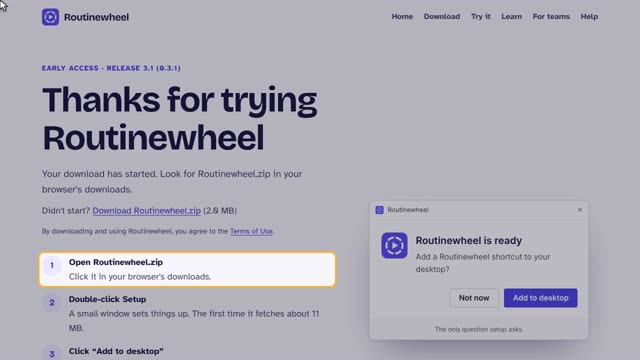
1:11Install Routinewheel
Get it from the Microsoft Store in one click, or download it from this site and double-click Setup.
 1:02
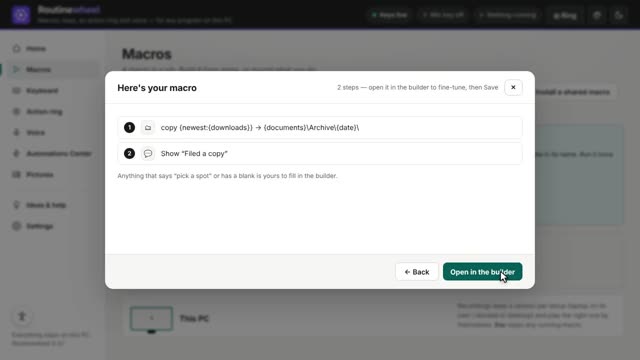
1:02Make your first macro
Quick build asks a few questions and writes the steps for you.
 1:10
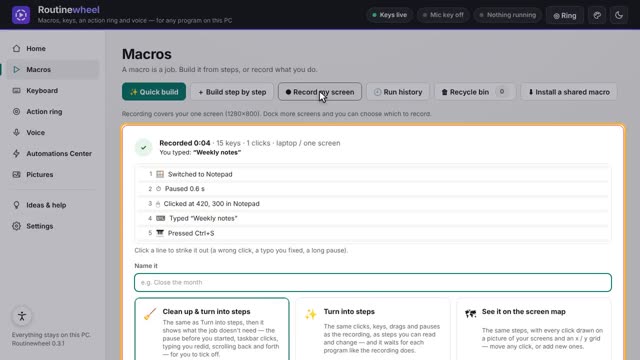
1:10Record a job once
Do the job once while Routinewheel watches, then turn it into steps you can read.
Starting your jobs
A key, the Action ring, your mouse buttons, or by itself when something happens.
 0:54
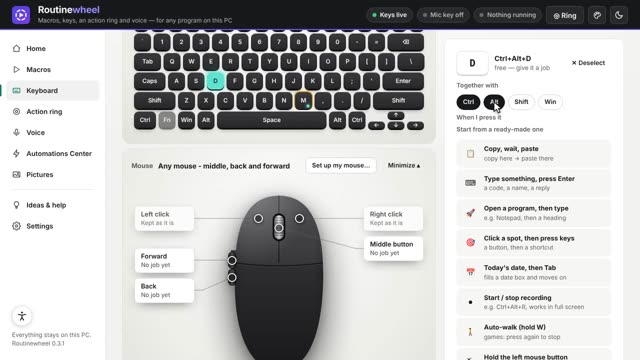
0:54Give a macro a key
Start a macro from any program with one keyboard shortcut.
 0:53
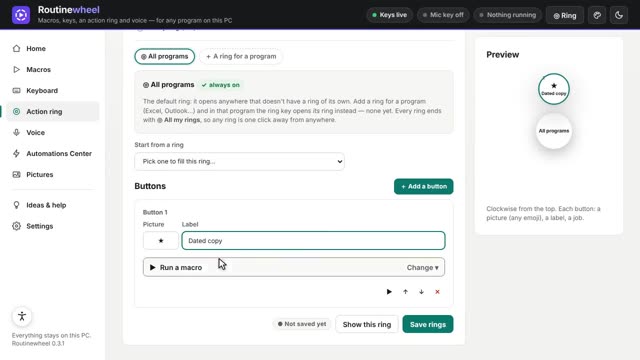
0:53Use the Action ring
One key opens a circle of your jobs right at your mouse, in any program.
 1:00
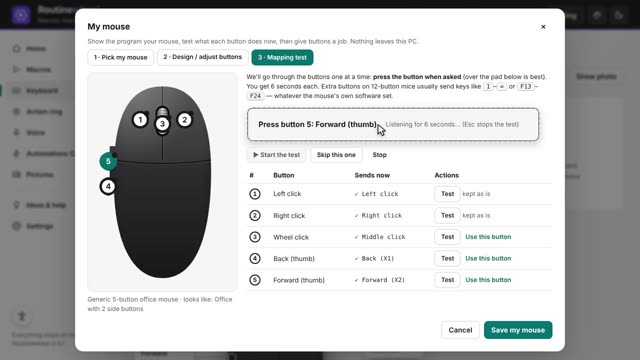
1:00Give your mouse buttons a job
Set up your mouse, test its buttons, and turn a side button into a shortcut.
 1:07
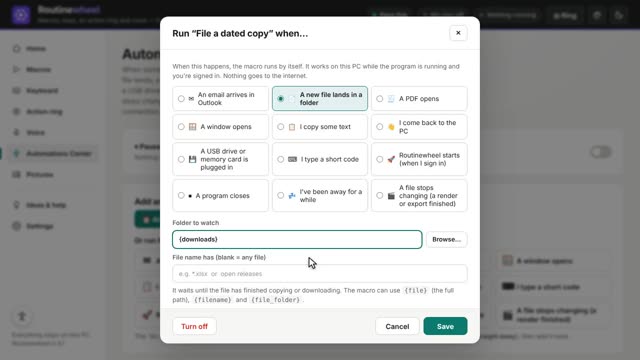
1:07Run a macro by itself
The Automations Center starts a macro when something happens: a file lands, a window opens, or a set time.
Fixing problems
Stop a macro, make clicks land in the right place, and find out why a macro stopped.
 0:58
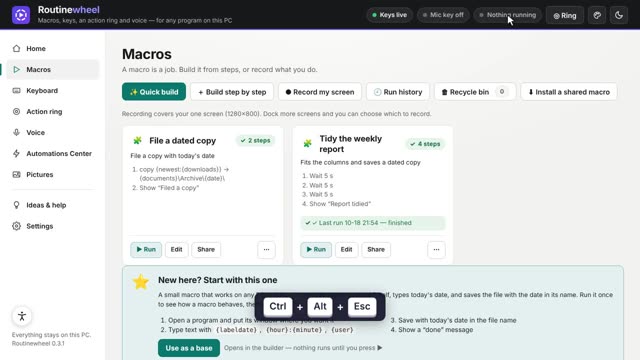
0:58Stop a macro
Esc stops a macro. The emergency stop also lets go of every key and button.
 1:03
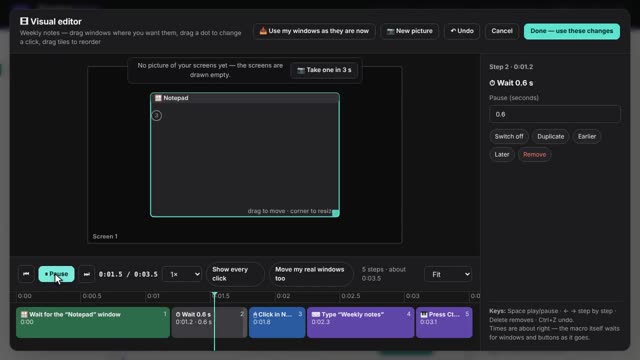
1:03Fix clicks that land in the wrong place
When a window moved or your screens changed: clicks that follow their window, and the Visual editor.
 1:08
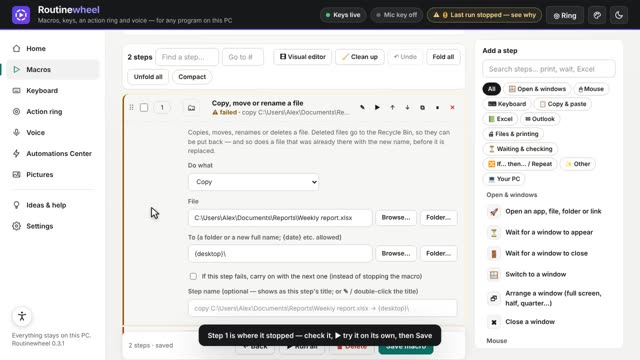
1:08When a macro stops by itself
Find the step that stopped it, fix it, check your PC, or send us a report.
Still stuck?
The help page answers the usual questions in a few words. In Routinewheel, Ideas & help › Troubleshoot checks your PC, and Report a problem sends us what went wrong. Or write to us: we read every message.