 Routinewheel
Give your mouse buttons a job
Set up your mouse, test its buttons, and turn a side button into a shortcut. 1:00
Read what the video says
Got a mouse with extra buttons? Routinewheel can give each one a job.
Go to the Keyboard page, and press Set up my mouse, under the keyboard.
First, pick your mouse from the list.
Not listed? Pick the shape it looks most like. This one has two side buttons.
Now open Mapping test, and press Start the test.
Press each button when it asks. The list shows what each one sends right now.
If a side button shows up as F thirteen, or another key, that's fine. Your mouse's own software set it up that way.
Next to the button you want, press Use this button. We'll take the back button.
The Keyboard page opens with that button picked. Choose what it should do. Run a macro, and pick yours.
Press Save. Now that button runs your macro, in any program.
Left and right click always stay as they are, so you never lose your normal clicks.
You'll find more short videos at routinewheel dot com, slash learn.
Step by step
- On Keyboard, press Set up my mouse… under the keyboard.
- Pick your maker and model. Not listed? Pick the shape it looks most like.
- Open Mapping test, press Start the test, and press each button when it asks.
- Press Use this button next to one. The Keyboard page opens with it picked.
- Choose what it should do, then press Save.
If it doesn’t work
- A side button shows as F13 or another key: that's fine. Your mouse's own software makes it send that key. Keep it that way.
- Left and right click are kept as they are, so you can't lose your normal clicks.
- The mouse picture takes up too much room: press Minimize ▴ on it.
Still stuck? Write to us, or in Routinewheel use Ideas & help › Report a problem.
More videos
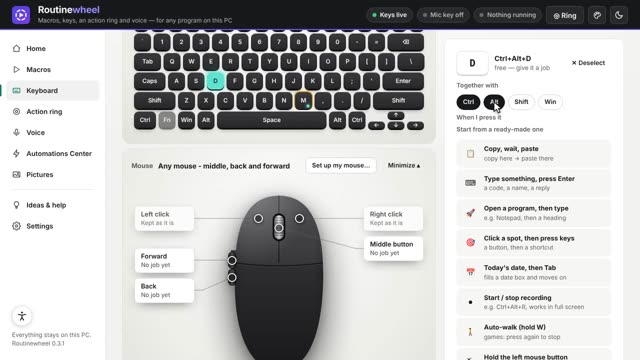 0:54
0:54Give a macro a key
Start a macro from any program with one keyboard shortcut.
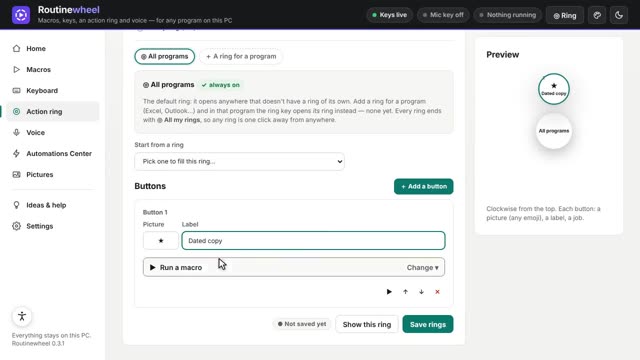 0:53
0:53Use the Action ring
One key opens a circle of your jobs right at your mouse, in any program.
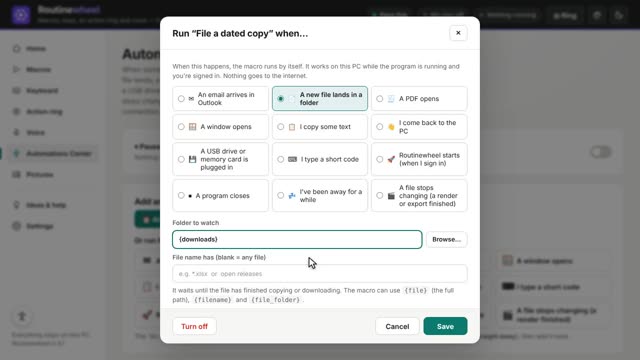 1:07
1:07Run a macro by itself
The Automations Center starts a macro when something happens: a file lands, a window opens, or a set time.