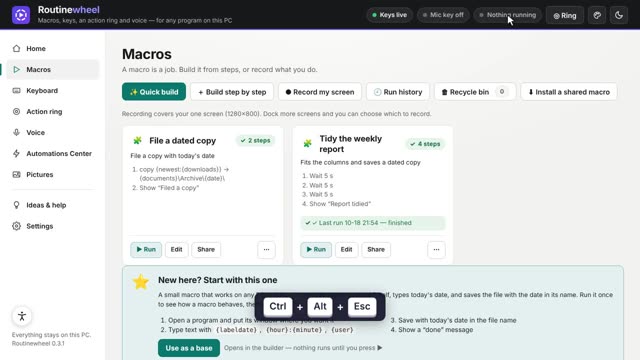
 Routinewheel
Fix clicks that land in the wrong place
When a window moved or your screens changed: clicks that follow their window, and the Visual editor. 1:03
Read what the video says
If a macro clicks in the wrong place, a window probably opened somewhere else, or your screens changed. Here's how to fix it.
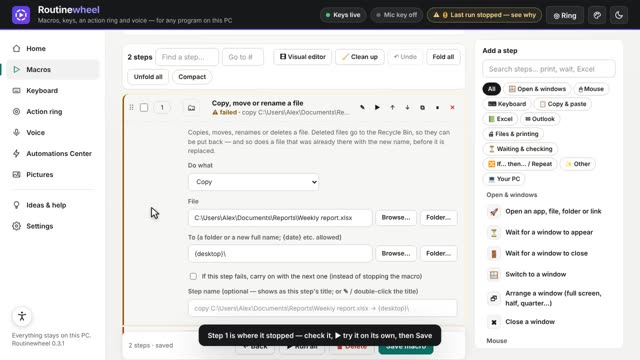
Press Edit on the macro.
Open the click step.
A click is measured from the corner of its window, so it follows the window when it moves. If a click was set up without a window, press Pick the spot, and click the real button again.
To see it all on a picture of your screens, press Visual editor.
Press Play to watch the macro. The numbered dot is where it clicks.
Drag a window to where it should open. Its clicks move with it. Drag its corner to make it bigger or smaller.
Press Done to use the changes, then Save macro.
A few more tips. Keys like Tab and Enter don't care where a window is, so use them where you can.
Add Wait for a window to appear, before steps in a program that's slow to open.
And if you switch between a laptop and a docking station, record once on each. The right one plays by itself.
You'll find more short videos at routinewheel dot com, slash learn.
Step by step
- Open the macro (press Edit on its card).
- Open the click step. A click is measured from the corner of its window, so it follows the window when it moves.
- If the click wasn't set up with a window, press Pick the spot and click the real button again.
- Press 🎞 Visual editor and Play to watch it. The numbered dot is where it clicks.
- Drag a window to where it should open. Its clicks move with it. Press Done, then Save macro.
If it doesn’t work
- Laptop today, docked tomorrow? Record once on each. The right one plays by itself.
- Keys like Tab and Enter don't care where a window is. Use them instead of clicks where you can.
- Add Wait for a window to appear before steps that work in a program that's slow to open.
- Programs started with “Run as administrator” ignore clicks from other programs.
Still stuck? Write to us, or in Routinewheel use Ideas & help › Report a problem.