 Routinewheel
When a macro stops by itself
Find the step that stopped it, fix it, check your PC, or send us a report. 1:08
Read what the video says
Sometimes a macro stops before it's done. Routinewheel tells you why, in plain words.
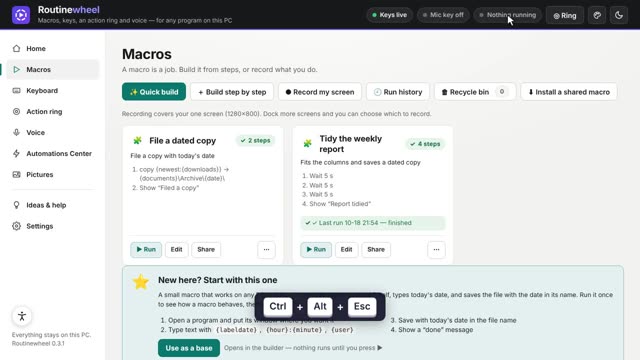
Here, we run a macro that copies a report.
It stopped. The light at the top says so, and the macro's card shows which step stopped it.
Go to Ideas and help, then Troubleshoot.
Your last run says which step stopped, and why. Here, the file isn't there. Maybe it was renamed, or moved.
Press Fix it. It opens that step, so you can change it, try it on its own with the play button, and save.
If something seems wrong with the PC itself, go back and press Check this PC.
It tries everything Routinewheel needs, for real, in a few seconds. It's safe to run any time.
Still stuck? Open Report a problem.
Say what went wrong, in your own words.
Press Create report. It adds the PC check and the recent log for you, so we can help.
And if you deleted a macro by mistake, the Recycle bin on the Macros page keeps it for sixty days.
You'll find more short videos at routinewheel dot com, slash learn.
Step by step
- Go to Ideas & help › Troubleshoot. Your last run says which step stopped and why, in plain words.
- Press Fix it → to open that step. Change it, try it on its own with ▶, then Save.
- Press Check this PC. It tries everything Routinewheel needs, in a few seconds.
- Still stuck? Open Report a problem, say what happened, and press Create report.
If it doesn’t work
- A window didn't open in time: add Wait for a window to appear before the step that stopped.
- A file wasn't found: check its name and folder. Words like
{date}are filled in when it runs. - Deleted a macro by mistake? 🗑 Recycle bin on the Macros page keeps it for 60 days.
- Back up your macros: Settings › ⬇ Download a backup.
Still stuck? Write to us, or in Routinewheel use Ideas & help › Report a problem.