 Routinewheel
Stop a macro
Esc stops a macro. The emergency stop also lets go of every key and button. 0:58
Read what the video says
You're always in charge. Here's how to stop a macro that's running.
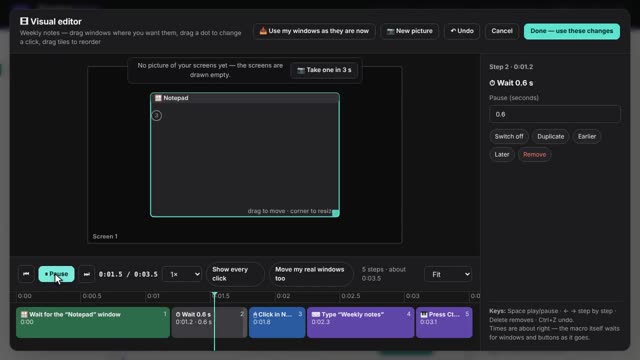
Let's run one. Before it starts, there's a short countdown, so you can let go of the mouse.
While it runs, the light at the top says what's running.
To stop it, press Escape. It stops before its next step, whatever program you're in.
Or click the light at the top.
If a macro ever seems stuck, use the emergency stop: the Pause Break key.
No Pause key on your keyboard? Press Control, Alt and Escape instead.
The emergency stop ends the macro, even a recording or a countdown. It lets go of any key or mouse button the macro was holding down, and ends programs it started.
It only does this while a macro is running, so the rest of the time your Pause key works as usual. And it works even when the Routinewheel window is closed.
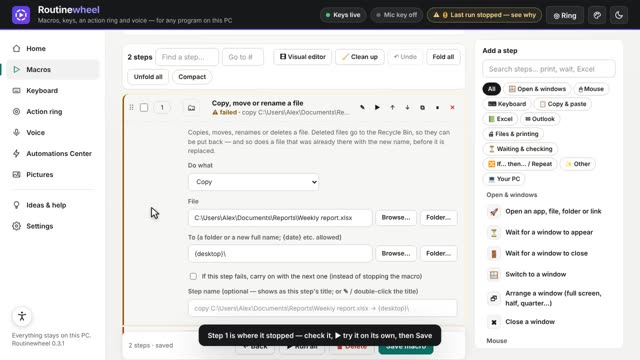
Afterwards, the macro's card shows where it stopped. Press Fix it to open that step, if something needs changing.
You'll find more short videos at routinewheel dot com, slash learn.
Step by step
- Press Esc. The macro stops before its next step.
- Or click the light at the top of Routinewheel that says what's running.
- Stuck? Press the emergency stop: Pause/Break, or Ctrl+Alt+Esc on keyboards without a Pause key.
If it doesn’t work
- The emergency stop also ends a recording or a countdown, lets go of any key or mouse button that was held down, and ends programs the macro started.
- It only works while a macro is running, so the rest of the time your Pause key works as usual.
- It works even when the Routinewheel window is closed.
- Games: holding Esc for 3 seconds lets go of everything held or clicking.
Still stuck? Write to us, or in Routinewheel use Ideas & help › Report a problem.