 Routinewheel
Use the Action ring
One key opens a circle of your jobs right at your mouse, in any program. 0:53
Read what the video says
The Action ring is a circle of buttons that pops up around your mouse, in any program. One key, then one click, runs a job.
Go to the Action ring page. First, pick your ring key.
Click the box, then press the keys. Control, Alt and R works well.
You can also press Escape three times quickly to open the ring anywhere.
Now press Add a button.
Give it a short label.
Then choose what it does. Run a macro, and pick yours.
The preview shows how the ring will look. Buttons go clockwise from the top.
Press Save rings.
Now, in any program, press your ring key, and click a button. Or press its number. Escape, or a click beside the ring, closes it.
Each program can have its own ring too. Press A ring for a program, and pick one, like Excel.
You'll find more short videos at routinewheel dot com, slash learn.
Step by step
- Go to Action ring.
- Click the Ring key box, then press the keys you want, like Ctrl+Alt+R.
- Press + Add a button. Type a short label.
- Choose what it does, like Run a macro, and pick one.
- Press Save rings.
- In any program, press your ring key and click a button (or press its number).
If it doesn’t work
- No ring key yet? Press Esc three times quickly to open the ring anywhere (when that box is ticked).
- The ring doesn't open over a full-screen game. That's on purpose.
- Esc or a click beside the ring closes it.
- Each program can have its own ring: press + A ring for a program.
Still stuck? Write to us, or in Routinewheel use Ideas & help › Report a problem.
More videos
 0:54
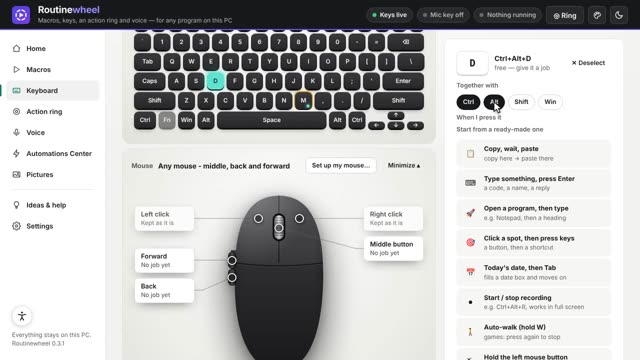
0:54Give a macro a key
Start a macro from any program with one keyboard shortcut.
 1:00
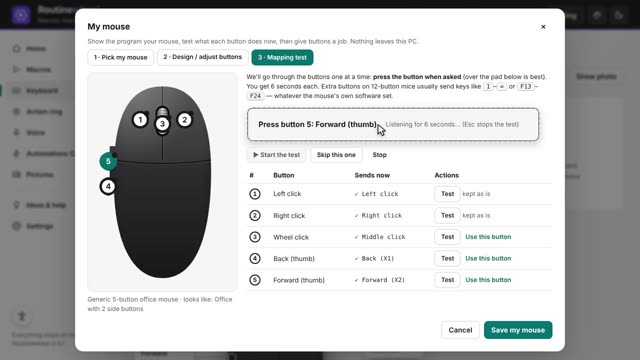
1:00Give your mouse buttons a job
Set up your mouse, test its buttons, and turn a side button into a shortcut.
 1:07
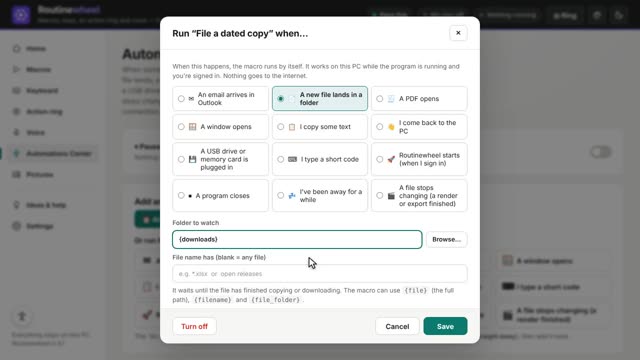
1:07Run a macro by itself
The Automations Center starts a macro when something happens: a file lands, a window opens, or a set time.